
Insights into work patterns of superuser and the resulting impact
Related Templates & Tools:


Additional Resources: Viva Insights Python Library, Viva Insights R Library
⭐ Star this repository to receive notifications about new template versions 👀 Watch for updates and announcements
▶️ Super User Impact Dashboard Preview
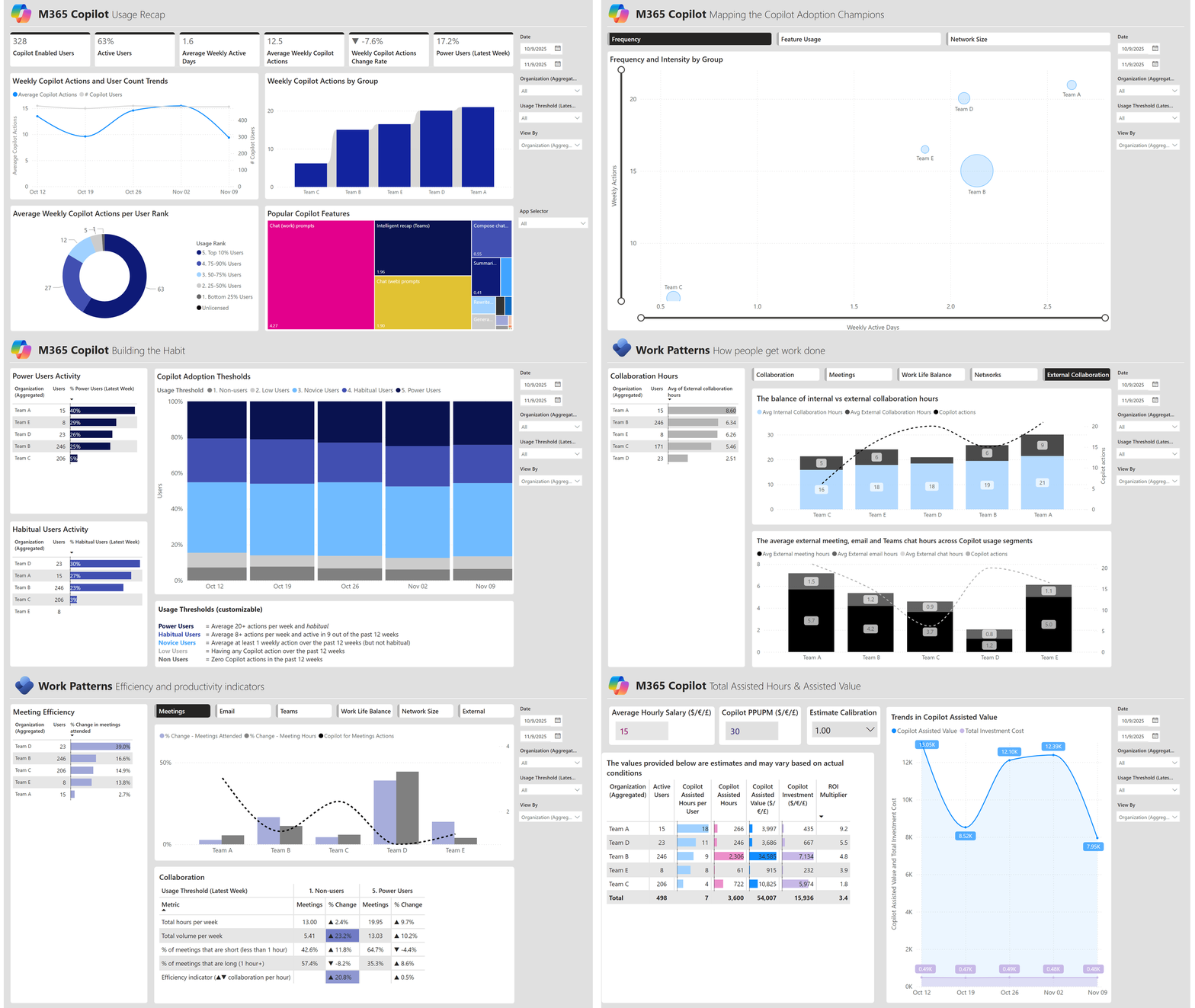
✨ What's New
- NEW 'Super User Impact' dashboard that explores the impact of Copilot on work patterns (& sentiment if available) and estimated value
- Static thresholds for usage tiers (clearer benchmarking)
- One click zoom into superusers
- Cross-team comparisons
📊 Why Study Super Usage & Insights You Can Explore
Super usage patterns show how experimentation turns into durable habits. Identifying early signals and contextual attributes helps you:
- Replicate adoption paths
- Prioritize enablement
- Benchmark across teams
- Inspire the organization
Super usage profile: What does super usage look like? What do super users use Copilot for? Are you seeing signs of workflow changes?
Journey: How did some users turn into super users? What did super users do differently in the early days of license activation? How fast are you producing super users? Is super usage durable?
Work patterns: What work patterns are associated with super users? Are you seeing any early impact?
Change management: Where are the super users concentrated? Where might you focus enablement efforts?
📋 Instructions
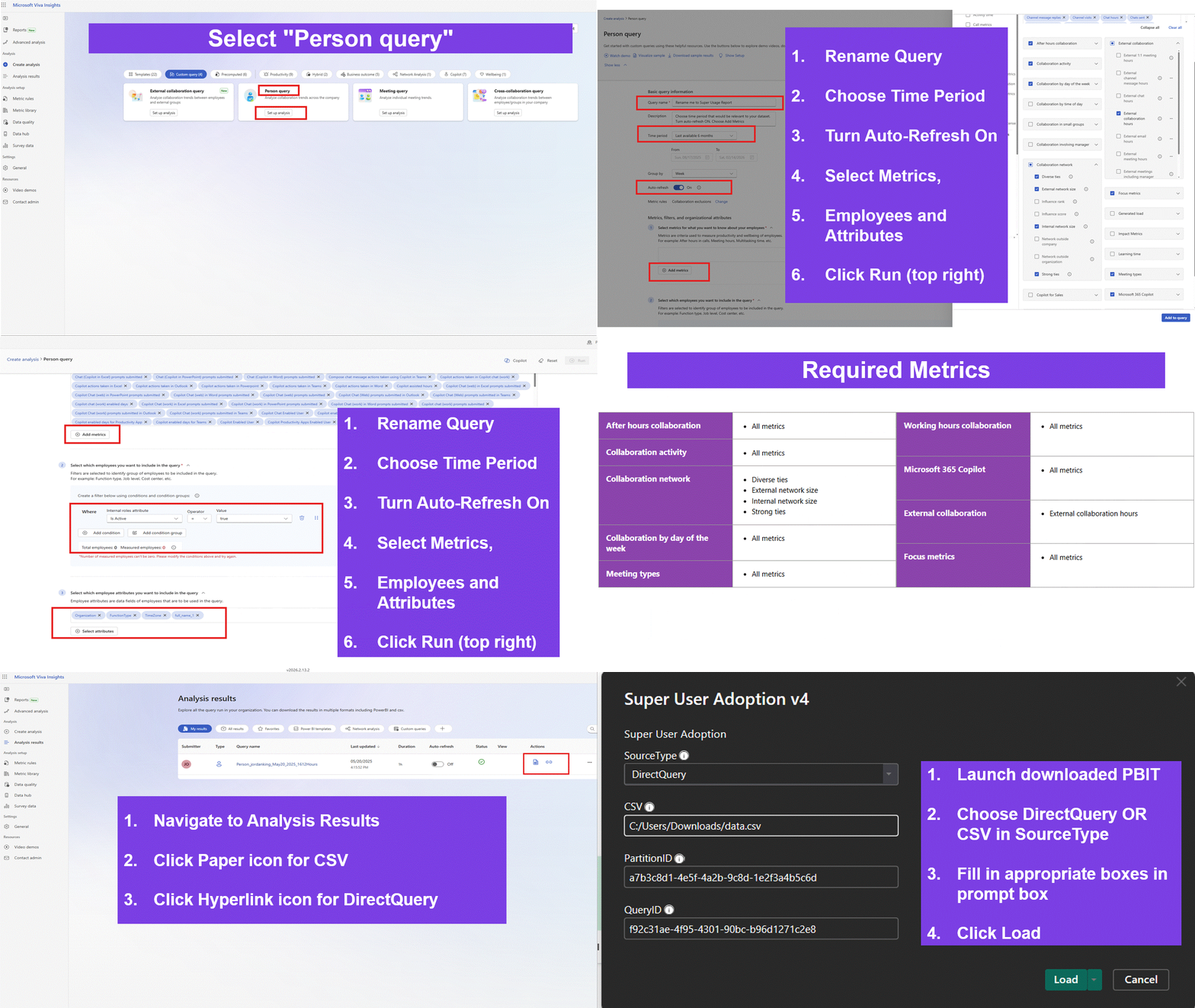
Written Setup Guide
Open the Viva Insights Analyst Workbench and follow this 5-step process to create your Person Query:
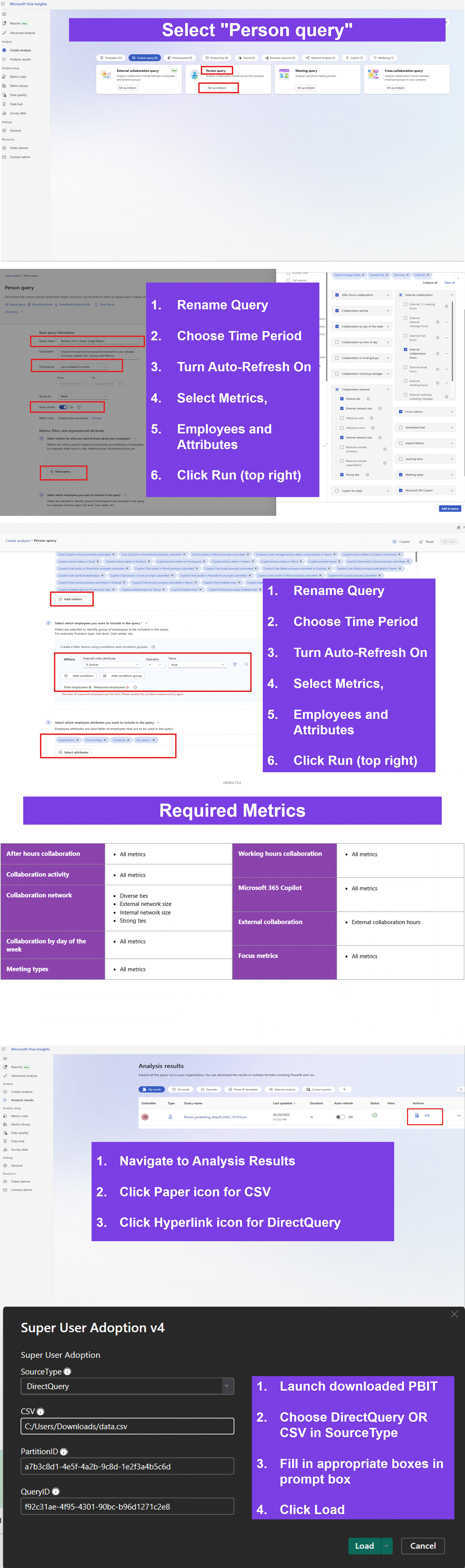
Detailed step-by-step guide with screenshots
-
Navigate to Analysis Results
- Go to https://analysis.insights.cloud.microsoft/
- Click on "Analysis results" in the left sidebar
-
Create New Person Query
- Click "Create analysis"
- Select "Person query" card
- Click "Set up analysis"
-
Configure Query Settings
- Time period: Last 6 months (rolling)
- Group by: Week
- Filter: Is Active = True
- Attributes: Organization, FunctionType, TimeZone (minimum required)
-
Select Required Metrics
- Microsoft 365 Copilot: Select "All metrics"
- Collaboration network: Select "All metrics"
- Working hours collaboration: Select "All metrics"
- Focus metrics: Select "All metrics"
- Missing even ONE metric will cause blank visuals in Power BI!
-
Run and Wait for Completion
- Save & Run your query
- Wait until Status = Completed (can take several hours for first run)
- Do NOT export mid-processing
- Once complete, copy your Partition ID and Query ID for Power BI
Validation & Troubleshooting
Checklist for success:
- No errors on load
- Fields pane includes expected tables
- Executive Summary visuals populate (not all blank)
Common Mistakes & Fixes
| Symptom | Cause | Fix |
|---|---|---|
| Blank visuals | Missing required metric(s) | Re-export/re-run query with full set |
| Missing slicers/labels | Skipped Org/Function Type | Add both attributes and reprocess |
| Trend calcs broken | Grouped by Month | Use Week grouping |
| Partial weeks | Exported mid-processing | Wait until Status = Completed |
| Distorted adoption rates | Didn't filter active users | Add Is Active = True |
| Load error | CSV open in Excel (Option 1) | Close file and retry |
| Direct Query blank | Wrong GUIDs or status not complete | Re-check IDs and query status |
Publish / Distribute
- Save your PBIX file after setup.
- If using Direct Query, publish to a Power BI workspace and configure credentials (OAuth2).
- If using CSV Import, publish the PBIX file but note that refreshes are manual.
Interpretation & Storytelling
Leverage the guides below to frame your narrative and drive action:
- Super Usage Interpretation Guide (PDF): Interpretation Guide Super Usage Adoption
- Storyboard presentation template: Storyboard PPTX - Super User Adoption
Use the included guides to:
- Create an executive-ready presentation
- Define what constitutes super usage internally
- Highlight early activation behaviors
- Recommend enablement actions per org or cohort
Monitor with Automatic Refresh
- Configure Published Report Refresh settings
- Navigate to Power BI Web (you may need to login)
- Find the Report and Semantic Model you just published.
- Hover over the Semantic Model and click on the icon as seen below:
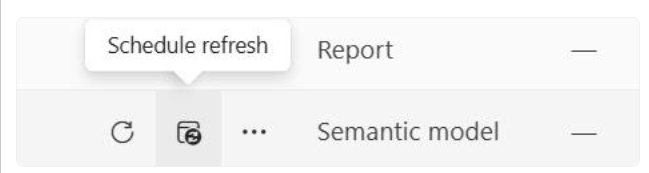
- On this page, from the list of options available, click on Refresh and then configure your report as seen below in the screenshot, or as you best fits your needs.
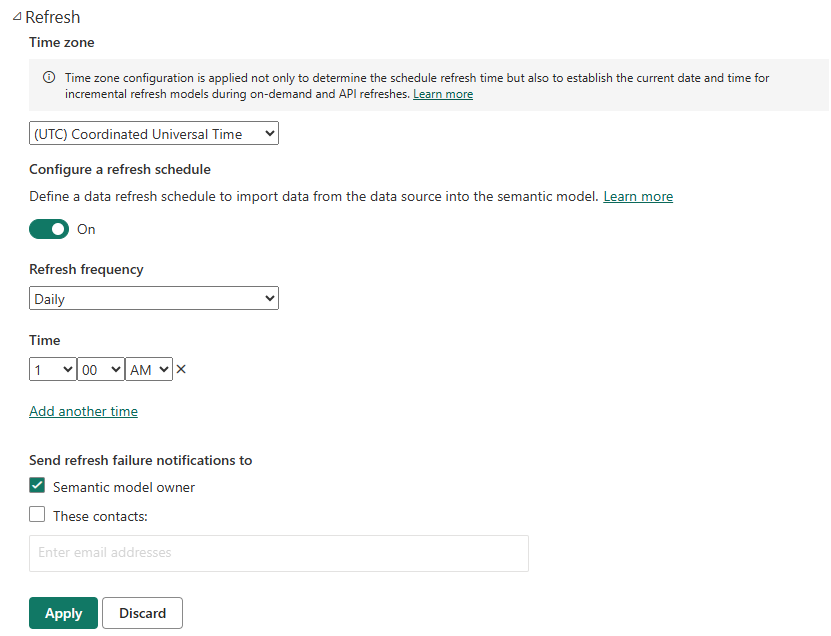
- For Direct Query: Reports update automatically with each weekly Viva Insights refresh, but you will still need to update the published report refresh settings as seen above.
- For CSV Import: Re-run your query, export a new CSV, and repoint the PBIX to the updated file.
- Verify weekly that a new week of data appears.
- Track emerging super users and adoption trends regularly.
🤓 Nerd Corner
If you're into automation and allergic to manual decks — try this:
👉 https://github.com/shailendrahegde/pbi-to-exec-deck
It turns raw outputs into exec-ready PPTs with insights pre-baked. All you do: verify, tweak, ship.
💬 Feedback
We want to hear your feedback and suggestions. Please reach out to keithmcgrane@microsoft.com and jordanking@microsoft.com.
🔔 Stay Updated
- ⭐ Star this repository to receive notifications about new template versions
- 👀 Watch for updates and announcements
- 🔄 Check back regularly for new features and improvements